Treat exported profile fields as untrusted text before opening them in a spreadsheet. CSV quoting keeps commas and line breaks inside fields; it does not, by itself, tell a spreadsheet to keep a formula-looking value as text. Preserve the original file, choose an explicit text-import route and keep any spreadsheet-viewing copy separate from the data you will later import into another system.
This guide is for the person receiving a prospect CSV containing names, headlines, companies or notes supplied by other people. It explains a review boundary, not a finding that a particular Leadsforlinked export is vulnerable. The worked example below is an inert, authored fixture. No malicious formula, spreadsheet application, exporter or CRM was executed for it.
Separate file structure from cell interpretation
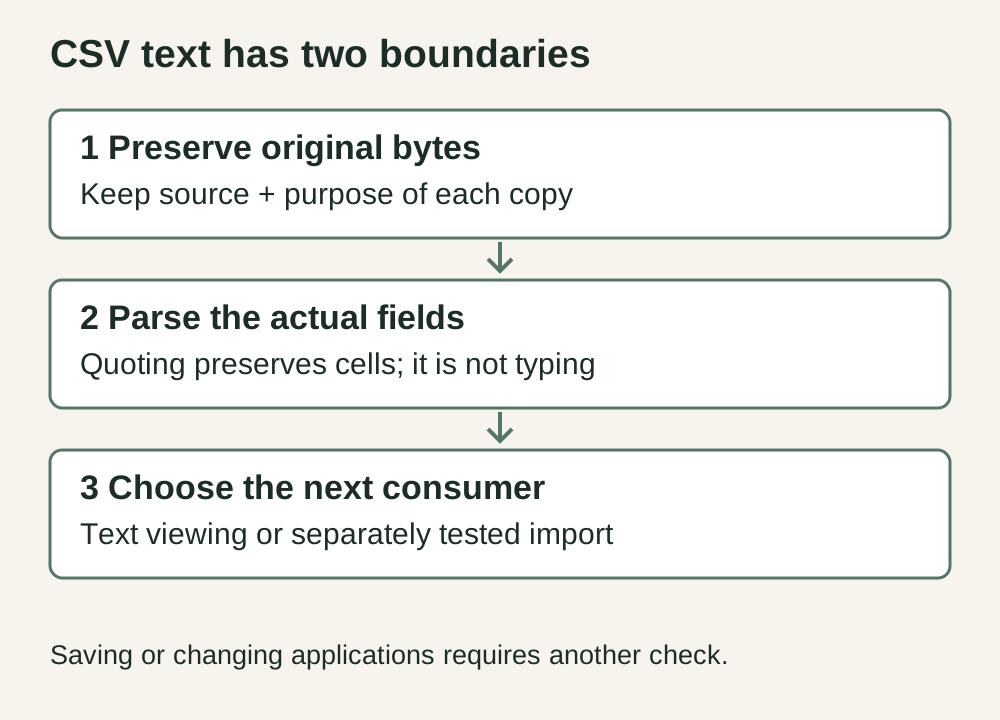
A CSV writer has to represent the supplied cells correctly. A company containing a comma needs a quoted field; a quotation mark inside that field needs the appropriate escaping. Once the file is parsed, the receiving application still decides whether each cell is text, a date, a number or a formula. Correct serialization and appropriate interpretation are different requirements.
OWASP's CSV Injection guidance, checked on 7 November 2026, identifies spreadsheet formula interpretation as a risk when untrusted values are exported. It covers leading formula characters, control characters and some full-width variants, and warns that saving and reopening can defeat familiar escaping techniques. Its central limitation matters: there is no universal sanitization strategy for every spreadsheet and downstream consumer.
That changes the handoff question. Ask who will consume the next copy and how. A human-readable spreadsheet, a machine import and an evidence archive can require different treatment. Calling one changed CSV “safe” without naming that destination hides the decision the recipient still has to make.
Inspect a small inert input without evaluating it
The following four values are fictional teaching data. Read them as characters printed on this page. They contain no network calls or external commands. The example is deliberately small enough to account for every value.
| Row | Supplied text | Review decision |
|---|---|---|
| F01 | Demo Fern Studio | Ordinary text in this fixture; retain the original. |
| F02 | =1+1 | Formula-looking text; do not open through an uncontrolled spreadsheet route. |
| F03 | +44 0000 000000 | Illustrative phone-shaped text beginning with plus; preserve its meaning while choosing text handling. |
| F04 | Demo "North, East" | Requires correct CSV quoting; that is a structural issue, separate from formula evaluation. |
F02 is a reason to control interpretation, not a reason to run the expression to see what happens. F03 is the useful counterexample to deleting every leading symbol. Removing the plus would alter the supplied value even though the intended task is merely to view it as text. F04 shows why scanning a raw line for commas is inadequate: a comma can belong inside one cell.
The proposed output is therefore a four-row review ledger, not a three-row “cleaned” audience. Every original value remains available, with the intended consumer, chosen import method and unresolved test recorded beside it. No person is accepted for outreach as a result of this review.
Choose the receiving route before opening the file
Keep the downloaded original in an approved location. Give the working copy a purpose-specific name, such as prospects-for-text-review, rather than overwrite the source. Record the source filename and the intended application. If you do not know which application another colleague will use, resolve that before distributing a transformed copy.
A text editor or a parser that returns strings can help inspect the contents without asking a spreadsheet to calculate them. That is a narrower operation than proving that every record is harmless. Use a real CSV parser to preserve quoted separators and multiline cells. Treat a parsing error or inconsistent row width as a hold: do not guess which cell should receive the shifted text.
When a spreadsheet is necessary, use its documented import controls rather than depend on whatever double-click chooses. In LibreOffice 26.8 Text Import help, the column type can be set to Text, and the Evaluate formulas option controls evaluation of expressions beginning with an equals sign. The same help distinguishes quoted fields, separators and character set. Those are documented controls, not a runtime test of your file or installed version.
Select the columns that must remain text and inspect the preview before loading. Confirm that all intended columns receive that treatment. A single text-formatted name column does not address a separate note or headline column. If your import dialog differs from the documentation, stop and establish the available controls rather than improvise with a production file.
In that documented Calc route, leave Evaluate formulas unchecked when expressions must be imported as text, and use the appropriate Text column type. Keep the resulting workbook separate from the original CSV. Verify a harmless fixture in your installed version before processing the real file.
Keep spreadsheet protection out of the identity key
Check whether the exporter already provides a documented representation option. For example, Salesforce's report-export help describes a setting that prefixes specified leading characters with an apostrophe. That is a particular product's documented output behavior, not a setting this guide has tested or a promise about Leadsforlinked. Retain that provenance when a CSV arrives with prefixes: they may be intentional exporter output rather than spelling mistakes. The next receiver still needs its own acceptance check, especially after saving and reopening a viewing copy.
Some workflows prefix exported cells to influence spreadsheet interpretation. OWASP discusses destination-specific techniques and their trade-offs; do not turn one technique into a universal rule. An added prefix can remain part of the underlying value when a later machine importer reads it.
For example, a viewing copy might display F02 as literal text after a chosen transformation, yet its stored value would differ from the archived F02. A subsequent comparison that expects exact original text could report a mismatch. The remedy is to retain a clear boundary between the source, the viewing representation and a separately prepared import payload.
Do not strip every leading apostrophe or tab from every later file to reverse an unknown transformation. A character may have belonged to the original. Reverse only a change whose exact scope and provenance you recorded, using the untouched source as the reference. If that reference is unavailable, hold the uncertain field rather than present a guessed reconstruction as original evidence.
Treat saving and reopening as a new boundary
A successful first viewing does not settle what happens after the file is saved, emailed or opened in another spreadsheet. The receiving application may interpret or rewrite the representation differently. Include the actual onward path in your acceptance check: original input, chosen import settings, saved output and the next consumer.
Use an approved inert fixture first. Inspect whether the intended text remains text, whether row and column boundaries survive, and whether the saved values still mean what you expect. Record the application and version, exact settings and observed result. This guide does not supply a passed Excel or Calc test: those observations belong to your environment.
If a cell has already been evaluated, closing a window or changing its visual formatting is not proof that the original value has been restored. Preserve the original separately and ask the appropriate technical owner to review the affected route. Do not distribute a saved file as a repaired source merely because its screen now looks ordinary.
Write an acceptance note someone else can use
A useful handoff says: “Four fictional rows were parsed as strings; the original is retained; F02 and F03 require controlled text handling; no spreadsheet was run.” For a real file, replace those statements with the actual count and actions. Add the destination, the settings that were checked, the values that changed and the person responsible for the next test.
Keep structural errors, formula-looking text and audience-quality decisions separate. A row can be structurally valid while needing controlled spreadsheet interpretation. It can also be perfectly readable yet belong to the wrong company. Neither quoting nor a text import supplies current employment, deliverable email or permission to contact someone.
When you later join enrichment results, use the existing selected-key reconciliation guide. Its job is preserving relationships between supplied files. This page's job is deciding how a spreadsheet receives the text. Completing one does not complete the other.
Check your real sample before buying more input
If you still need profile input, Leadsforlinked's existing offer is 100 free profile leads once at signup, without a card, released in batches of 20. Inspect your actual CSV and choose a controlled viewing route. This is an audience-data sample, not a free campaign trial or a promise that every field is complete.
If you already have adequate data, finish the receiving test with that file. More profiles will not repair an unsafe opening route. Campaign and reply-management needs are a separate purchase decision; the current paid catalogue describes that boundary. No exporter, spreadsheet, import or sending behavior is certified by this documentation-based guide.