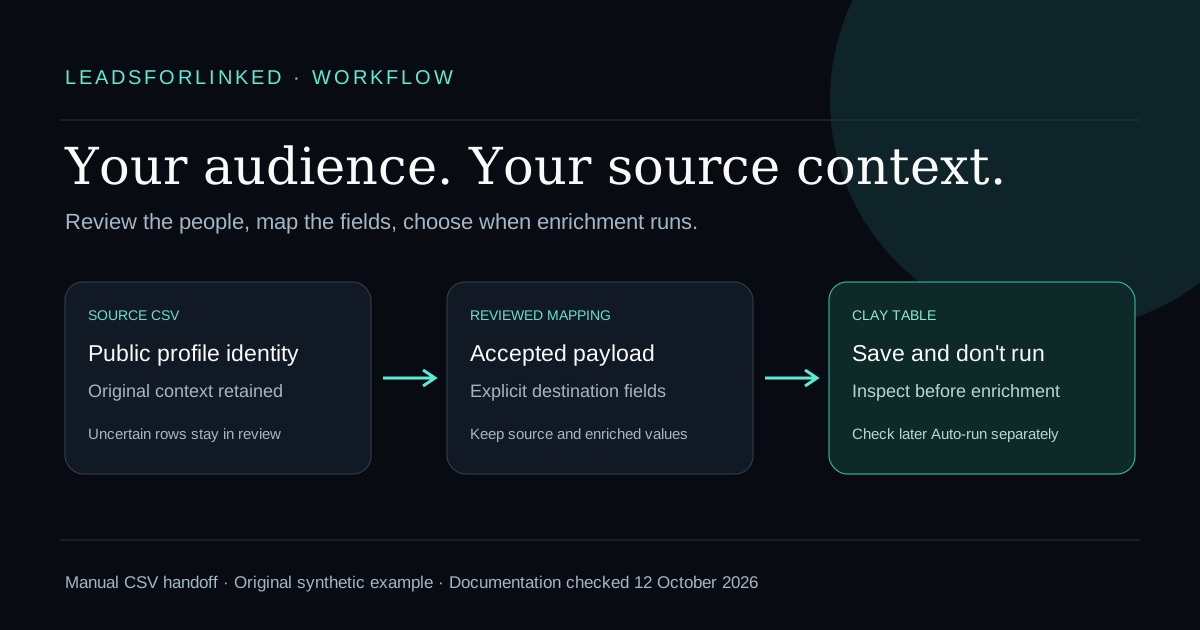
You have selected the people you want to research in Clay. Some came from a LinkedIn search, others from an event or a post your team reviewed. You need their identities and the reason they belong in the audience to survive the handoff. Import the reviewed file first, inspect it, then decide which enrichment should run.
Original work product: a synthetic profile CSV, a separate file of review cases and an editable mapping recipe. They demonstrate a manual CSV transfer. They contain fictional records marked synthetic=TRUE and do_not_contact=TRUE; do not enrich or contact them. Vendor mechanics below were checked on .
Choose the audience before the importer
Write down the actual job: the people, the required fields and the destination. “Research people who match these filters” differs from “research this client-approved set of people.” The first can be a native search. The second needs the identities and review decisions you already hold.
Clay's Find People documentation describes sourcing people inside Clay, including people at specified companies. Keep that route when it supplies the audience you need. An external extractor is useful when you deliberately need a different, reviewed input; it is not a necessary extra purchase for every Clay table.
Give the source list a filename and date. Keep the original unchanged. A later result should remain traceable to the person and context you selected, even when an enrichment changes a title or company. Do not overwrite source observations with researched values.
Download the example and the mapping recipe
- Download the approved demonstration CSV. Every identity is fictional and marked do not contact. Use it to inspect columns with enrichment paused.
- Download the separate review cases. These demonstrate missing identities, wrong URL types, duplicates and conflicting records. They are not approved input.
- Download the editable field-mapping recipe. Record how your own export columns map to your table.
The column names are our example schema, not mandatory Clay headers. An actual Leadsforlinked download may use different labels. Locate the column containing the intended person's public profile URL, then map deliberately. A sample file with a plausible-looking header does not establish the actual exporter contract.
| Example column | Purpose | Before importing your real data |
|---|---|---|
linkedin_profile_url | Person identity | Confirm a public person URL, not a company or search page |
first_name, last_name | Source name | Preserve the source spelling; do not guess a name split |
company_name | Source company observation | Keep a later enriched company in a separate field |
source_url, source_context | Why this person was selected | Retain the observed post, event or source context |
review_decision, review_reason | Audience approval | Import only the records you have actually approved |
synthetic, do_not_contact | Demonstration and exclusion state | Keep the demo separate; neither field enforces a destination blocklist by itself |
Review identities and conflicts outside the table
A public profile path such as /in/... can be inspected as a person URL. A /sales/lead/... value contains a different identifier. Changing its path to /in/ does not prove that you have found the person's public profile. Keep opaque IDs in review until the identity is established from the actual source.
Compare overlapping source files in the Prospect List Workbench merge view. It preserves conflicting originals for review. Its main output can still contain those review rows, so it is not an approved import file automatically. Resolve the review cases and build a separate accepted payload before uploading it.
Read the review fixture as a decision exercise. A missing URL stays on hold. A company URL stays on hold. Exact duplicate identities with different context require a provenance decision. Conflicting names or companies on the same URL need investigation; picking the newest row is not proof that it is correct.
If you need to remove records already in your CRM, use the workbench's exclusion view with an actual identity column from the reference export. Invalid reference identities leave the exclusion incomplete. Review the warning before treating the remaining rows as new people.
Import the reviewed file with enrichment paused
Clay's CSV import guide documents this flow: create a CSV source, or use Tools → Import in an existing table; upload the file; choose a new table, append, or replace; map the columns; then choose Save and don't run to avoid immediate enrichments. Replace current table overwrites its rows. Select that deliberately rather than treating it as an append.
Inspect the displayed identities, text and source context. Compare the imported rows with your accepted payload, not with the larger raw export. Keep your rejected file separate. A successful upload confirms the transfer stage; it does not demonstrate matching accuracy or verified email availability.
Keep later edits from starting an unexpected run
Importing without an immediate run is one choice. Clay's table settings guide separately documents Auto-run, enabled by default. It can trigger enrichments when records are added or edited. Turn the table-level setting off during setup and inspect column settings before enabling it. Table-level control governs the column-level switches.
The same guide says auto-dedupe keeps either the oldest or newest row for a chosen column and deletes duplicates; blank cells and values longer than its documented threshold are excluded. Use it only after choosing what should survive. It does not reconcile contradictory observations or replace your original source files.
Clay's credit usage documentation describes estimates for downstream runs and an import confirmation when existing table actions would be triggered. Review the affected rows and columns, not just the first enrichment you intended to run. This recipe does not establish that your Clay plan or downstream providers are free.
Join the results back to the reviewed audience
Keep the reviewed profile identity beside any returned result. Use it to match records back to the accepted source list. A matching company name alone is insufficient when your task concerns people, and a matching full name alone can still be ambiguous.
Separate matched, unmatched and conflicting results. Store an enriched email, the provider's status and any separate verification result as distinct fields. A LinkedIn profile export does not itself promise a verified email. An enrichment response should not become “verified” merely because a cell is populated.
Retain the input filename and output version with the final audience. For the next production job, compare the next export with the previous accepted set before repeating expensive work. The workbench's snapshot view can help identify new, changed, missing and uncertain rows; missing from an export does not mean a person has left a company.
Move from a sample to the larger extraction job
Test the actual source and required fields before buying a larger extraction. Leadsforlinked's published offer, checked 12 October 2026, includes 100 free leads at signup without a card, released in batches under the current free terms. Use the actual output to confirm that the audience can enter your intended table.
If the accepted audience meets the requirement and you need more profiles, choose the current pack or recurring extraction plan. Keep the sending and enrichment tools that already meet your needs. The paid job here is producing the additional source audience, not unlocking this worksheet or a promised Clay integration.
Sources and verification
Read 12 October 2026. This is a documented manual-transfer recipe with original synthetic examples; a live Clay import or enrichment run is not claimed.
- Clay: CSV import mechanics
- Clay: auto-run and auto-dedupe settings
- Clay: downstream estimates and import warnings
- Clay: native Find People source
- Leadsforlinked: current free offer and extraction plans
Frequently asked questions
Can I import a LinkedIn CSV into Clay?
Yes. Clay documents importing a CSV as a source and mapping its columns. This guide supplies an example schema, not mandatory vendor headers.
Does Save and don't run switch off all future enrichment?
No. It avoids the immediate import run. Check table-level Auto-run and column settings separately before later additions or edits.
Can I convert a Sales Navigator ID by changing the URL path?
No. An opaque Sales Navigator identifier is not a proven public profile slug. Keep it in review until you establish the actual person's public identity.
Should I upload the workbench's entire merged output?
Only after review. Conflicting originals can remain in the workbench's main output and review file. Build a separately approved payload for the destination.
Does Leadsforlinked provide verified emails in this recipe?
Verified emails are not promised here. The source is a LinkedIn profile CSV; separately obtained enrichment and verification results need their own fields and status.