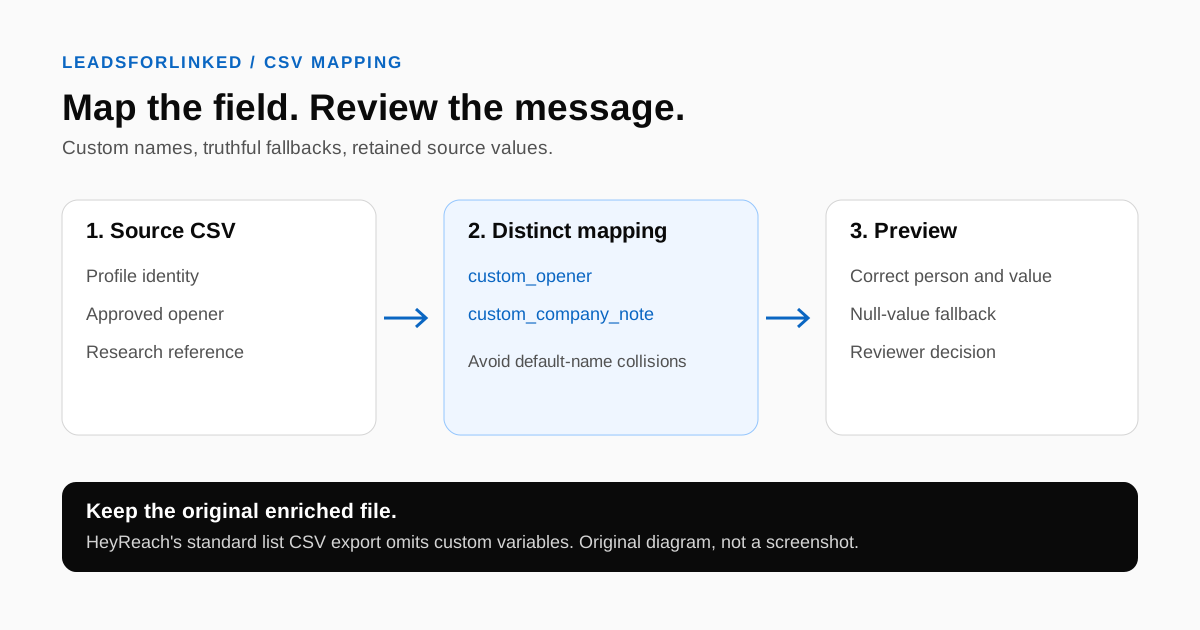
You have an externally curated audience: client-approved CRM records, profiles from several LinkedIn sources and researched opening lines. The list is ready for sending only when the intended identities and prepared fields reach the right HeyReach variables. If preview shows an ordinary company name or a fallback instead, inspect the mapping before launching.
This guide focuses on HeyReach CSV custom variables import, not a broad tool comparison. It includes an original mapping checklist and review procedure. Vendor documentation was read on ; the examples are synthetic and do not represent a tested campaign.
When native import is enough: HeyReach's Leads Screen Overview, dated 15 August 2026, lists LinkedIn search, Sales Navigator, Recruiter, event-attendee, post-reactor and HubSpot imports. Its list menu also offers Combine Lists, Intersect Lists and Exclude from List. Use those routes when they already produce the audience you need. The external CSV workflow is useful for a mixed-source audience with separately approved fields, not a prerequisite for every HeyReach campaign.
Prepare identities and extra values separately
Keep an unchanged source file and make a working copy. Separate identity fields from message content. For each opening line, keep the observation that supports it: the actual post, event or company update you reviewed. A generated sentence can sound specific while referring to the wrong person.
Before mapping, decide which rows belong in the audience. Compare them with existing contacts in the Prospect List Workbench exclusion view. Review uncertain matches manually. Do not lose the personalization columns when preparing your final file; retain the original source and join any review decisions by the same profile identity.
If your extraction contains one full-name column, check how first and last names will be supplied. Do not split every name on the first space and assume the result is correct. Resolve missing identities from your source before continuing.
Map the CSV in the documented import flow
HeyReach's How to import and use custom variables? guide currently shows “Updated over 3 weeks ago.” It documents this CSV route:
- Open Leads, select Add Leads, then Import from CSV and Continue.
- Supply LinkedIn profile URL, first name and last name.
- Choose Add custom variable. Map from selects the source column; the other field names the HeyReach variable.
- Select an existing list or create an empty one, then choose Import.
A small approved file should answer whether identity, content and mapping agree. Retain its filename and destination list in your working notes. The worksheet is a mapping log; its header labels are not a mandatory HeyReach upload schema.
Give custom values a distinct name
The same guide warns that a CSV column already mapped to a default field must be set to None before reuse. It also says the default Company wins when a custom variable has that name. An incomplete custom-variable configuration must be completed or removed before import.
Our suggested naming convention uses a descriptive prefix, such as custom_company_observation. This is an editorial convention, not a claim about every permitted CSV variable character. Do not apply API naming rules to a CSV workflow without checking that route's documentation.
| Your source column | Intended mapping | Review question |
|---|---|---|
| First name | Default identity field | Is this the correct person's name? |
| Opening line | Distinct custom opener | Does the source support the sentence? |
| Company observation | Distinct custom company observation | Does it avoid the default Company name? |
| Unused scratch column | No message mapping | Can it stay in your internal notes? |
Keep one checklist row for each mapping, including unused fields, so the next operator can see what was approved.
Write a fallback that remains true without the custom value
HeyReach's How to write a good LinkedIn outreach message, dated 24 June 2026, says default variable spelling is case-sensitive and uses single curly braces. Insert variables through the available selector rather than recreating syntax from memory. The custom-variable guide documents per-lead preview and a fallback message when a custom value is null.
Distinguish a supported observation, intentionally absent context and unresolved research. Use the approved opener for the first, an honest fallback for the second, and hold the third for review.
Synthetic writing example: an approved opener might reference a post the prospect actually wrote. A fallback could simply say, “I work on prospect-list preparation for sales teams. Is that part of your role?” It makes no claim about a post, attendance or prior relationship. Adapt the question to your actual offer.
Review the whole fallback message, not only the greeting. If a later sentence still says “your recent announcement,” the message continues to depend on missing research. Also inspect punctuation when a variable includes a full sentence. Duplicate periods and repeated introductions can survive a technically correct mapping.
Preview cases that could change the message
Build a review set from the situations in your own data: a complete row, a missing observation, a long opening line, punctuation inside a value and a possible company-name collision. These are review cases, not a prescribed batch size or a claim that we ran them in HeyReach.
For each case, compare the rendered message with the approved source. Record whether the intended field appears, whether the fallback remains truthful and whether any unresolved placeholder is visible. Mark the result only after someone has checked it; a successful upload does not approve the writing.
If preview disagrees with the file, inspect the mapping and preserve the unexpected output. Resolve an identity mismatch before rewriting the message.
Keep your enriched source after import
HeyReach's Leads Screen Overview, dated 15 August 2026, states that Export to CSV includes default columns, not custom variables. An ordinary list export therefore should not be your only copy of the approved opening lines.
Keep the source CSV, mapping checklist, destination list name and approval date together. When an opening line changes, record which source version was used. This lets you investigate an unexpected message without guessing whether the export reflects the enrichment file.
If you later switch senders, carry the approved custom values in your retained source and remap them to the new destination's documented fields. Review active conversations separately. A personalization file is not a universal transfer of sequence position, replies or exclusion history.
Use the editable checklist before creating the lead payload
Download the HeyReach custom-variable checklist. Every example row is labelled synthetic=TRUE. It includes identity mappings, an opener, a possible default-name collision and an unused configuration. Replace the sample text and fill the reviewer and decision fields.
Use csv_source_column to record the actual column in your file and target_variable for the chosen destination name. Record the identity check, collision review, fallback review and preview result separately. A blank reviewer or unresolved decision is still work to do. The download contains no collected prospects and should not be uploaded as a lead list.
Keep HeyReach when its sending workflow fits
The honest concession: if HeyReach already handles the sending workflow you need, improve the source file and mapping before replacing it. This article does not claim that Leadsforlinked imports HeyReach custom-variable state or campaign history.
For a fresh audience, Leadsforlinked's published offer, checked 12 October 2026, provides 100 free leads at signup without a card. Review the exported fields, add your own approved research and check the destination's required identities. Profile extraction does not promise an opening line, verified email or successful HeyReach import.
Primary sources and verification
Read on 12 October 2026. Vendor dates below describe the source pages, not our verification date. Worksheets and review decisions are original synthetic planning aids.
- HeyReach Help: How to import and use custom variables?. Shows “Updated over 3 weeks ago”; checked 12 October 2026. No exact update date inferred.
- HeyReach Help: How to write a good LinkedIn outreach message. Dated 24 June 2026; checked 12 October 2026.
- HeyReach Help: Leads Screen Overview. Dated 15 August 2026; checked 12 October 2026.
- Leadsforlinked: published free allowance and CSV offer. Checked 12 October 2026.
Frequently asked questions
Which fields does HeyReach require for this CSV route?
HeyReach lists LinkedIn profile URL, first name and last name as mandatory for the documented CSV custom-variable import. Populate and map those identity fields before reviewing extra columns.
Why does my custom Company variable show the default value?
HeyReach says a custom variable named Company can collide with the default Company variable, which takes precedence. Use a distinct custom name and inspect the mapped source column.
What happens when a custom variable is null?
HeyReach says the fallback message is used when a custom variable value is null. Configure and preview that message. Check blank spreadsheet cells in the current interface rather than assuming they always behave identically.
Will HeyReach export my custom variables back to CSV?
Its Leads Screen Overview says Export to CSV returns default columns, not custom variables. Keep the original enriched source file and mapping record instead of treating the export as a complete backup.
Is this download a ready-to-upload HeyReach lead file?
No. It is an editable mapping and review checklist with synthetic examples. Replace the examples, record your own decisions and build the separate lead payload from your approved source data.