Your LinkedIn audience has profile links and useful role or company observations, but no verified email addresses. Some people already exist in HubSpot. You want to update the right contacts without inventing emails, splitting names by guesswork or recreating the same people on every upload.
This guide covers an existing-contact CSV update using HubSpot Record ID. It includes synthetic mapping examples and a separate review file. New-contact creation without email is not established here; check your account's current creation requirements before choosing that branch. Documentation was checked on . No live HubSpot import is claimed.
Separate existing-contact updates from new people
A HubSpot Community discussion dated 8 May 2026 describes large spreadsheets with contact people who lack personal emails. That is a real preparation problem. It does not prove that a particular import route accepts every email-free file.
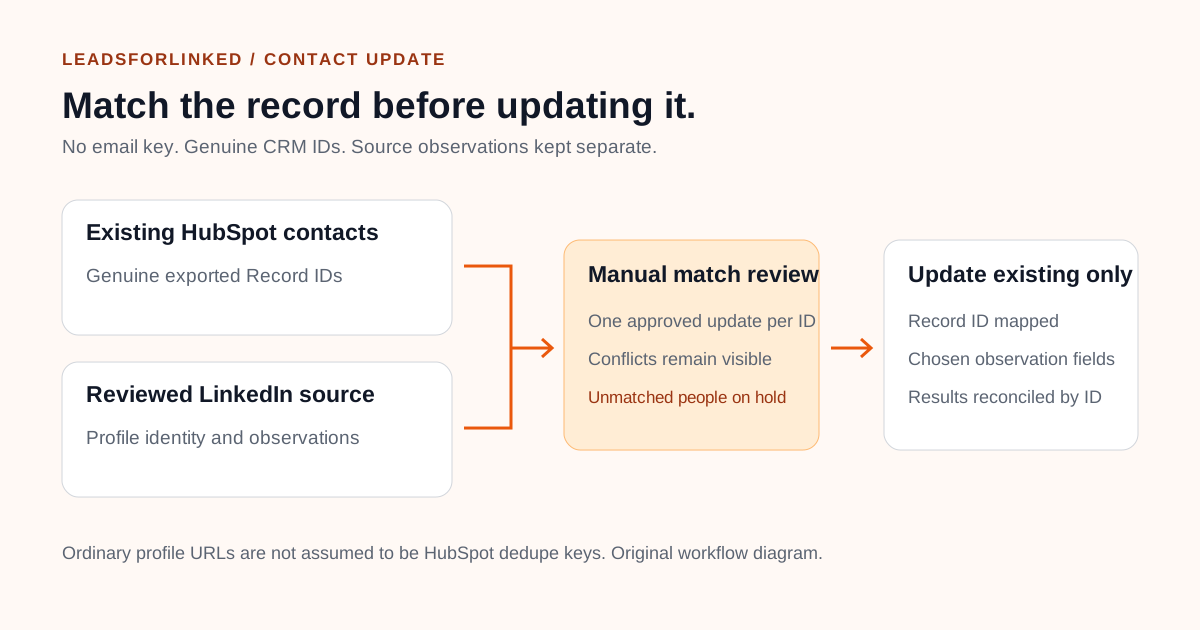
Split your audience into existing contacts with confirmed Record IDs, unmatched people and ambiguous matches. Only the first group belongs in this update payload. Keep unmatched people in research until the current creation requirements are known. A LinkedIn URL alone is not a destination Record ID.
HubSpot's single-object import guide, updated 7 October 2026, distinguishes creating records from updating existing ones. Updates need a unique identifier. This recipe uses Record ID, so email is not the matching key.
Start with the existing HubSpot contact baseline
HubSpot's record export guide, updated 2 April 2026, describes choosing the exported properties. Include the contact's Record ID in the selected view or choose all record properties. Check the resulting contact ID column; an associated company's ID serves a different purpose. Preserve the original export and its date.
Use the ID exported from your account. Never derive it from a name, company, LinkedIn slug or another account's example. Preserve its value when opening the spreadsheet.
Match the new source to this baseline deliberately. Inspect the actual profile and existing contact when identity is uncertain. The Prospect List Workbench merge view can help review overlapping identity lists, but it does not establish a genuine HubSpot Record ID for a person absent from your reference export. Its main output may retain conflicts; build the approved payload separately.
Map identity separately from source observations
Our example headers are editorial labels, not mandatory HubSpot or Leadsforlinked headers. Map your actual file deliberately. Keep the known CRM identity and the newly observed profile data in different columns.
| Our example column | Proposed destination | Review before import |
|---|---|---|
hubspot_record_id | HubSpot Record ID | Use the real exported contact ID |
source_profile_url | Chosen source-profile property | Confirm the intended person's URL |
source_display_name | Chosen source-name observation property | Do not guess first/last-name components |
source_job_title, source_company_name | Chosen source-observation properties | Keep an observation distinct from a verified employment change |
| Review fields and synthetic markers | Internal notes or skipped columns | Do not treat them as native import controls |
HubSpot's property guide, updated 28 August 2026, advises checking existing fields before creating custom ones. Ask your administrator to configure missing observation fields within the account's permissions and capacity. These labels are suggestions.
An ordinary LinkedIn-URL property is not automatically a deduplication key. HubSpot documents custom properties that require unique values, but that is a separate configuration and import choice. This guide does not assume it is enabled. Record ID remains the destination key here.
Use the approved examples and separate review cases
Download the synthetic approved mapping examples and the separate review cases. Every row is marked synthetic=TRUE and do_not_contact=TRUE. There are no real people, first-name guesses or email addresses.
The approved file demonstrates mapping only. Its nonproduction Record ID placeholders cannot supply a HubSpot upload. Replace every placeholder and fictional observation with genuine exported IDs and reviewed source data before building your real payload.
The review file includes a missing Record ID, a missing profile URL, competing contact IDs for one profile, conflicting observations for one ID, a company page and an unresolved Sales Navigator link. All remain on hold. Those decisions demonstrate our preparation method, not measured HubSpot import outcomes.
Do not use the sample flag as a suppression mechanism. A column called do_not_contact does not configure HubSpot communication permissions by itself. Keep these demonstration files separate from production contacts.
Build the real update payload after review
Keep one approved update per destination Record ID. Resolve duplicate IDs and contradictory observations first. A newer file timestamp does not establish that its job title is correct. Keep the conflicting source rows and the decision reason outside the approved file.
Inspect the actual URL rather than relying on its shape. Public /in/ links and Sales Navigator lead identifiers are different inputs; changing a path does not verify the same person. A company page cannot supply person identity. Unresolved matches stay in review.
Decide which property values should change. If an existing name or company is authoritative, retain it and store the new observation separately. HubSpot's Format import files guide, updated 11 September 2026, says blank import cells do not clear existing property values. Do not use blanks as a deletion plan.
Choose Update existing only and inspect the mappings
Follow the current single-object guide: open Data Management → Data Integration, choose Import data → Advanced imports, select contacts, and choose Update existing only. Upload the real approved file and map hubspot_record_id to Record ID.
Map the selected observation properties, skip internal columns and review overwrite choices before finishing. The vendor documents Don't import column and Don't overwrite controls. Confirm the mode and identifier before submission; a mixed create-and-update import serves a different job.
Complete the account's consent and data-use choices truthfully. Profile collection does not supply those answers. Do not mark research records as suitable for marketing merely because their import mapping is complete.
Reconcile updates and errors by Record ID
HubSpot's import-error guide, checked 12 October 2026, says unmatched identifiers in an update-only import are not used to create new records. It also distinguishes duplicate and invalid Record IDs. Keep the affected ID, source row and reason in your review file.
Check the updated contact and mapped observation fields against the approved source. Reconcile records accepted, records requiring correction and records intentionally held. Correct the affected rows; do not switch the entire file to Create and update simply to clear an error.
Retain each source, approved payload and result. Repeated extraction supports research; absence from an export does not prove a job change. Approve updates against evidence.
Use native CRM Sync when it already meets the requirement
The honest concession: HubSpot's LinkedIn CRM Sync guide, updated 21 June 2026, describes creating and updating HubSpot contacts from Sales Navigator. It requires an assigned Sales Hub Professional or Enterprise seat and Sales Navigator Advanced Plus. Evaluate that supported route if your team already has the required access and needs its synchronization workflow.
The manual recipe here is useful for a separately curated audience or source-observation refresh. It does not promise a native Leadsforlinked connection, email enrichment or automatic contact/company association.
Test the source before producing a larger refresh
Leadsforlinked's published offer, checked 12 October 2026, includes 100 free leads at signup without a card. Inspect your actual exported profile fields and the overlap with your HubSpot baseline. Keep the existing source if it already supplies the required audience.
Once the source fields, identity matches and update mapping meet the job, choose a current extraction pack or recurring plan for the additional profile audience you need. The paid work is producing that source audience. It does not remove HubSpot's import requirements or provide missing emails and Record IDs.
Sources and verification
Checked 12 October 2026. This is a documented update/readiness recipe with original synthetic fixtures; no live HubSpot import or blanket email-free contact creation is claimed.
- HubSpot: single-object create/update modes. Updated 7 October 2026.
- HubSpot: record exports. Current page checked today.
- HubSpot: file formatting and update identifiers. Updated 11 September 2026.
- HubSpot: property configuration. Updated 28 August 2026.
- HubSpot: import-error interpretation. Current page checked today.
- HubSpot: native LinkedIn CRM Sync. Updated 21 June 2026.
- HubSpot Community: large lists without personal emails. OP dated 8 May 2026; workflow pain only.
- Leadsforlinked: published free allowance. Checked today.
Frequently asked questions
Can I update existing HubSpot contacts without using email as the key?
HubSpot documents updates using Record ID as a unique identifier. This recipe uses genuine contact IDs exported from your account and Update existing only. It does not establish email-free creation of new contacts.
Will HubSpot deduplicate my CSV automatically by LinkedIn URL?
That is not assumed here. An ordinary URL field does not itself establish a unique-value property configuration. This guide maps the genuine HubSpot Record ID for existing-contact updates.
What should I do with a person who has no HubSpot Record ID?
Keep the row outside this update payload. Establish whether the person already has a record, then obtain its actual ID. If the person is new, check current creation requirements before choosing a different import route.
Does an empty imported cell clear an existing value?
HubSpot's file-format guide says blank cells do not clear existing property values. Choose the appropriate value-management action rather than using a blank CSV cell as a deletion instruction.
Are the downloaded examples ready for a HubSpot import?
No. All rows are synthetic and marked do not contact, with nonproduction Record ID placeholders. Replace them with reviewed real data and genuine exported IDs before building the actual approved update payload.