A profile export can be useful to a Dynamics 365 Sales team before anyone has found an email address. The important decision is what the rows represent. This guide prepares new, unqualified Leads for research using the model-driven app’s CSV import wizard. It does not create a campaign, qualify the prospects or synchronize LinkedIn with Dynamics.
Microsoft documentation was checked on 6 November 2026. The example below is fictional and validated locally as CSV. No Dynamics account session or actual import was performed. Use a small approved sample in your own environment before committing a larger file.
1. Choose Leads for unqualified prospects
Microsoft’s Sales guide describes Leads as potential customers and supports CSV imports. Its account and contact guide distinguishes company Accounts from person Contacts. Several Contacts can belong to an Account; one Contact can be associated with one Account.
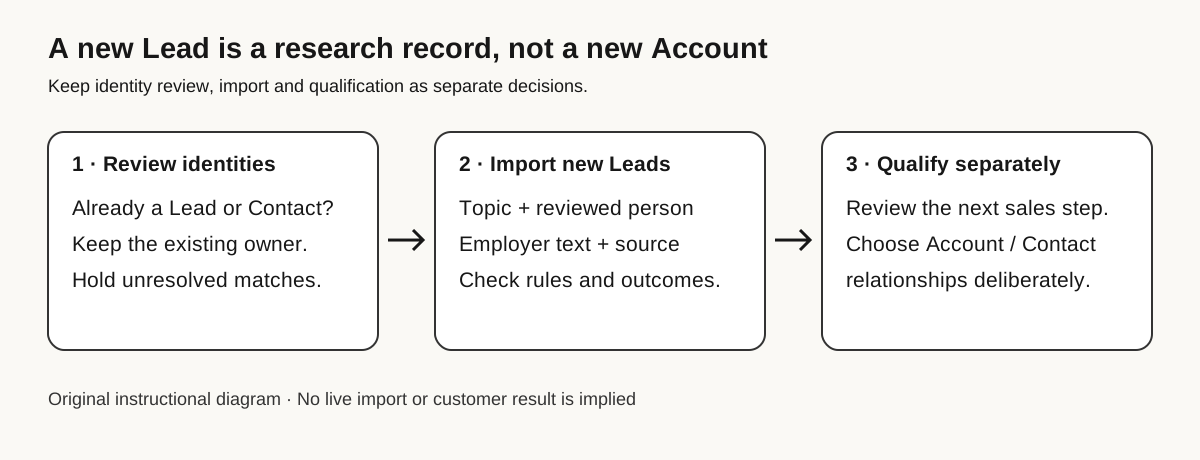
For this recipe, each accepted row is a distinct person and research topic. Two people at the same employer can therefore be two proposed Leads. This is not the company-grouped Lead model used by some other CRMs. Importing those rows is a separate job from selecting or creating Accounts and Contacts during later qualification.
Before preparing new Leads, compare your list against existing Leads, Contacts and company relationships. If a person already has an owner or an active conversation, send the new observation to that owner for review. Do not create a fresh Lead simply because the incoming row lacks an email address. An existing Contact is still an existing person.
2. Check the required fields in your environment
The current Sales Lead instructions list Topic and Last name as required. The Lead reference identifies their logical names as subject and lastname, with ApplicationRequired status. Company Name (companyname) is Recommended in that reference; it is not a universal required email substitute.
Your organization can have additional requirements. Inspect a new Lead form and the importer’s required mappings before using this example. If the tenant requires email, obtain a real suitable address or hold the row. Do not fabricate an address to get past validation. A required company or custom field likewise needs genuine information.
Our example includes a reviewed company name because it helps the person review. It is company text on the Lead, not an existing Account lookup or a command to create an Account. This recipe deliberately leaves Account and Contact lookup fields out of the file.
3. Prepare the fictional example, then your own sample
Download the three-row fictional Lead CSV. The people, companies and topics are invented. Reserved example.invalid URLs prevent the sample from pointing to real profiles. They are teaching placeholders. Replace the examples with your separately reviewed records; do not treat them as prospects.
Topic,First Name,Last Name,Company Name,Description
DEMO - procurement research,Maya,Démo,"Demo Atelier, Ltd",Fictional source: https://example.invalid/profile/maya
DEMO - operations research,Leo,Example,"Demo Atelier, Ltd",Fictional source: https://example.invalid/profile/leo
DEMO - finance research,Nora,Example,Demo Harbor Works,Fictional source: https://example.invalid/profile/nora
The file has five columns and three data rows. The quoted company comma and the accent in Démo survive local parsing. Every row has a Topic and Last Name. There is no email, phone, consent value, GUID or lookup relationship to invent.
| CSV header | Lead destination | Review before import |
|---|---|---|
| Topic | Topic / subject | Describe the real research job; do not imply confirmed interest. |
| First Name | First Name / firstname | Preserve the person’s actual name; do not split ambiguous names automatically. |
| Last Name | Last Name / lastname | Required in the documented Sales form. Hold unresolved names. |
| Company Name | Company Name / companyname | Reviewed employer text, not Account identity matching. |
| Description | Description / description | Keep a source URL and concise dated context on the proposed Lead. |
The Lead reference documents Description as an optional text area of up to 2,000 characters. Using it for provenance is our preparation choice. A URL stored there does not become a unique key, verified identity or built-in LinkedIn integration.
These are target preparation headers, not a promise about Leadsforlinked’s export columns. Preserve your original export and prepare a copy. Review the actual fields shown in the CSV export walkthrough; translate the reviewed name and employer into this mapping. Add the research Topic yourself. Do not infer contact permission from the presence of a profile URL.
4. Confirm Lead duplicate detection before uploading
Microsoft’s duplicate-rule guide says default duplicate rules cover Accounts and Contacts, not other record types. Lead rules must be configured for rule-based detection. Ask your administrator which published rules cover the incoming Leads, including how missing email values are handled. A rule that relies on email cannot be assumed to identify this email-free list.
The organization settings also control duplicate detection during data import, and the wizard must enable the check. Leaving Allow Duplicates off does not by itself prove that suitable Lead rules exist. Review the rule, organization setting and import choice together.
Keep an external review log with the source identity and your decision: new, existing or unresolved. Similar names at one employer need evidence, not automatic merging. When a row is already known, investigate its existing record instead of changing the spelling to force creation.
Updating existing rows is a separate workflow. The CSV guide supports selecting an alternate key that has already been defined. Our example has no alternate key and makes no update claim. A profile URL in Description is not an alternate key merely because it is unique in the file.
5. Use the documented CSV wizard
Follow Microsoft’s model-driven app import instructions:
- Open your sales app and select Leads.
- Choose Import from CSV on the command bar. Select your reviewed file and continue.
- Choose the duplicate policy. Set the comma delimiter and double-quote field delimiter used by this example.
- Select Review Mapping. Verify every required field and each optional destination; ignored optional columns will not be imported.
- When the mapping is correct, choose Finish Import, then Track Progress.
If these controls are absent, check your app, role and administrator’s configuration. Stop at an unexpected destination or requirement. Do not substitute a different import surface and assume its update behavior is identical.
6. Reconcile outcomes before another upload
The import log reports successes, failures and partial failures, and offers error-row export. Inspect the affected records and their provenance. Correct failed rows from the reported cause; avoid rerunning the whole original file blindly.
For your real sample, record the input row count, the outcome of each row, the resulting Lead IDs and any unresolved duplicate decision. Open each new Lead and confirm its Topic, name, employer text and source. Confirm that the import has not become an accidental follow-up job under your team’s configured workflows.
A successful import would show that those records were accepted by that environment. It would not prove a person’s interest, current buying authority or permission to send messages. Decide qualification and the next action with the record owner.
Need the profile CSV first?
If the missing input is a LinkedIn profile audience, Leadsforlinked’s extractor offers 100 free profiles once at signup, in batches of 20, with CSV export and no card required. Inspect the sample fields before preparing the Dynamics file. The allowance supplies profiles, not verified email addresses or a tested Dynamics import.
For further extraction, compare optional packs with the recurring Basic CSV plan in the pricing guide. Choose according to the list job and how often you need new profiles. Export access and paid campaign features are separate decisions.
Sources and verification
Official Microsoft documentation read on . This is a documented workflow with an original fictional example, not a live import report. Local checks cover CSV parsing, headers, quoted commas, required sample values, UTF-8 and page links. Tenant behavior and custom requirements need verification in your own environment.