You have a short list of people to research and a team that already works in Close. The next job is to put each person under the right company, retain their LinkedIn source, and avoid creating a second account when the company already exists. A CSV handoff can do that without pretending the file contains email addresses.
This is a documentation-based import recipe. Close’s official help was checked on 6 November 2026. The downloadable example was validated locally as CSV; it was not uploaded to Close. There is no claim of a built-in Leadsforlinked integration or a successful live import.
1. Decide which company each person belongs under
Close’s Lead model uses a company as the Lead in a B2B workflow, with one or more people as Contacts. Its Contact documentation says each Contact belongs to one Lead. That distinction matters when a LinkedIn export contains several people from one company.
Before mapping anything, compare the selected companies with your existing Close records. Check company identity independently of person identity. Two people at the same company should not automatically become two company Leads; two companies with similar names should not automatically become one.
For a real file, keep the untouched export and work on a copy. Review each person’s current employer and relevant role. If the employer is missing or uncertain, resolve it or hold that row before this company-grouped import. A job title in a profile headline is a research observation, not proof of a current employer.
2. Prepare a small CSV with one person per row
Download the three-row fictional CSV. All identities and companies are invented. The URLs use the reserved example.invalid domain so that no real LinkedIn profiles are implied. These are teaching placeholders, not usable prospect links. Do not import or contact the examples as real prospects.
company_key,company_name,contact_name,role_observation,profile_source_url
DEMO-A,"Demo Atelier, Ltd",Maya Démo,Operations lead,https://example.invalid/fictional-profile/maya
DEMO-A,"Demo Atelier, Ltd",Leo Example,Procurement lead,https://example.invalid/fictional-profile/leo
DEMO-B,Demo Harbor Works,Nora Example,Finance lead,https://example.invalid/fictional-profile/nora
The local check confirms five columns in every row, three distinct placeholder identities, two company keys and intact UTF-8 text. The comma in “Demo Atelier, Ltd” is quoted correctly. Our intended grouping is two company Leads containing three Contacts; that is an editorial expectation to check in your importer, not an observed Close result.
These are preparation headers, not a promised Leadsforlinked export schema or mandatory Close column names. Our documented export walkthrough shows an actual file with full_name, linkedin_url, company and other profile fields. Inspect your own file. Use its reviewed name and source URL; fill a company grouping value only after checking the employer. Keep unknown email and phone data absent.
3. Map the person fields to Contact, not company
Close’s preparation guide separates standard Lead, Contact and Address fields. Reuse existing standard and custom fields before creating new ones. It also states that lead_id is for updating genuine existing Close Leads; a new-company file must not contain invented Close IDs.
Under Settings → Customizations → Custom Fields, select the relevant object tab. The custom-field guide distinguishes fields attached to Leads from fields attached to Contacts. A Text field stores plain text without validation. For this recipe, choose an existing Contact Text field for the profile source, or deliberately create one there. Storing a link will not verify its identity.
| Example column | Intended destination | What to check |
|---|---|---|
company_name | Standard Lead name | The reviewed company, not the person’s name |
contact_name | Standard Contact name | The actual person, preserving accents |
role_observation | Chosen Contact Text custom field | A dated source observation; do not overwrite a trusted role blindly |
profile_source_url | Chosen Contact Text custom field | A real checked person URL in your own file |
company_key | Chosen Lead Text custom field, also used for grouping | A company identity key, never a person’s profile URL |
Do not place every person’s LinkedIn URL in one company-level source field. In the example, Maya and Leo belong under the same company but have different identity links. Keeping those links on the respective Contacts preserves that distinction. A custom field named “LinkedIn” does not, by its name, create synchronization or an automatic matching rule.
4. Upload, inspect mappings and group the company rows
The Lead Importer guide accepts CSV with a header row and a 15 MB upload limit. Open Import data from your account menu, upload the reviewed file and inspect the mapping previews. Resolve flagged errors. Group repeated company rows using the reviewed company key; check the displayed group count before proceeding.
In the fictional example, both DEMO-A rows belong together. DEMO-B stays separate. If your real preview shows one company Lead per person, revisit grouping. If it joins unrelated companies, revisit the company key. Grouping the rows in this upload and recognizing an existing Close Lead are separate decisions.
5. Choose what happens when a company already exists
Close’s update guide uses a comparison field with a unique value for each Lead. Matching Leads can be skipped, receive missing information, or have mapped information replaced. Nonmatching Leads can be created or skipped. Select those actions for the job: new-company creation, adding people to known companies, or a deliberate update.
The import guide says a match on any selected comparison field counts as a match. Selecting several fields does not require all of them to agree. Inspect that choice before relying on a company name alongside a stronger key.
For your first real sample, separate already-known companies from new companies. Use genuine Close Lead IDs where you have verified them. If you use an internal company key, confirm it is present and consistent in the destination. A company name alone is a weak business key when names collide or change.
A person’s profile URL identifies neither the company Lead nor the intended update by itself. Compare incoming people with the company’s existing Contacts before adding them. Keep an unresolved same-name pair out of the upload until you can tell them apart. Do not assume that storing a profile URL as custom text makes Close deduplicate Contacts by that URL.
“Only add missing information” is useful when the approved job is filling gaps. It is not the right action for deliberately correcting a populated value. Conversely, selecting replacement merely to refresh one role can affect other mapped fields. Keep the update payload narrow and retain the previous values you might need to restore.
6. Read the outcome before scaling the import
The import history supplies created, skipped and failed outcomes, with downloadable error rows available for 30 days. Undo deletes created Leads; it is not a universal rollback. Replacement cannot be undone, changed Leads may be skipped during undo, and reverting requires Bulk Delete permission.
After your own small import, open each affected company and its Contacts. Check the name, company association, person-level source and any existing conversation. Reconcile your input rows with the outcome; company Lead counts and Contact counts answer different questions. Download failed rows promptly, correct the actual cause and avoid uploading the entire original file again by habit.
Decide how these records will be used before enabling any follow-up. A profile-only CSV has not supplied verified email addresses, a phone number or permission to contact someone. Importing a research list does not establish any of those things.
Worked case: three source people, two new-file rows
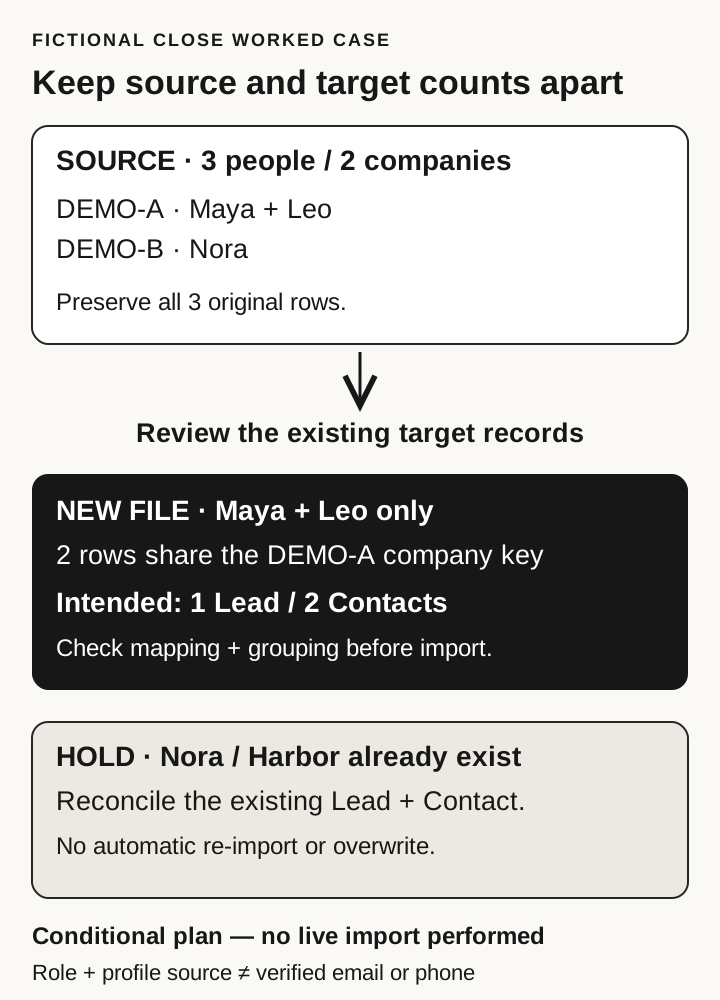
Fictional scenario. The CSV above contains Maya Démo and Leo Example at Demo Atelier, Ltd, plus Nora Example at Demo Harbor Works. Now add an important piece of destination evidence: in this story, a colleague checks the team’s existing Close records and finds both Harbor’s company Lead and Nora’s Contact. That inspection is a scenario premise, not something we performed in a live Close account.
The unchanged source still has three people across two companies. It remains useful as the original research file. The file prepared for new-company creation should now contain only Maya and Leo. Nora’s row stays on hold for reconciliation with the existing record; it is not silently deleted from the source or uploaded again to see what happens.
Download the two-row prepared example to compare it with the unchanged three-row source. This fictional output keeps Maya and Leo under DEMO-A; Nora remains outside it for reconciliation.
Prepare the two rows around one company identity
In the working copy, keep DEMO-A and the exact reviewed company name on both rows. Keep Maya’s name, role observation and source link together; do the same for Leo. Map the company name to the Lead, and each person’s name and observations to the appropriate Contact fields described above. The company key groups the two rows; it must not replace either person’s source URL.
The intended new-file result is one new company Lead with two Contacts, conditional on the actual mapping, grouping and existing-record checks being correct. Do not count the two people as two new company Leads. Equally, do not claim that two submitted rows prove two Contacts were created: the destination’s actual outcome still needs checking.
Use the preview to challenge the proposed structure
For your own real sample, inspect the importer’s mapping and grouping preview before committing. If Maya and Leo would appear under separate company Leads, stop and revisit the grouping choice. If they would attach to Harbor, stop and review the company identity and comparison fields. If the two source links land in one company field, correct their placement on the respective Contacts.
These are decisions to make when you inspect your account, not reported screen observations. Close’s documented grouping and comparison options support the checks; they do not guarantee that this fictional file will be accepted or that Contacts will merge automatically.
Reconcile Nora separately and report the right counts
Keep Nora’s existing Lead and Contact references with the held row in your own review notes. Compare the incoming role and profile source with the actual record and preserve its conversation history. There may be nothing to change. If an update is justified, choose the intended fields and update action deliberately rather than including Nora in the new-company file or replacing existing information by default.
The preparation count is therefore three source people, two proposed new-file rows and one held row. The proposed new-company structure is one Lead containing two Contacts. After any real import, record the actual created, updated, skipped and failed outcomes separately. A role description or profile link still supplies neither a verified email address nor a phone number, and the example establishes no permission to contact anyone.
Need the LinkedIn audience first?
If you already have a suitable list, start with that file. If the missing input is the reviewed profile audience, Leadsforlinked’s extractor offers 100 free profiles once at signup, released in batches of 20, with CSV export and no card required. Inspect your sample’s actual fields before preparing the Close mapping.
For additional extraction, compare the optional packs with the recurring Basic CSV plan in the pricing guide. Choose according to a one-off list or recurring collection job. Neither purchase supplies a tested Close import or verified contact details. This export allowance is separate from paid campaign features.
Sources and verification
Official documentation read on . Instructions describe the documented product, not an observed account session. The fictional file and mapping choices are original examples. Local validation covers CSV structure, quoting, UTF-8 preservation and illustrative grouping only.